LTO Portal Login: LTMS Registration, License & Exam Guide
Your complete guide to the LTO Portal. Use the quick links below to log in, register a new account, take the CDE exam, or start your license renewal online.
One small error in your LTO record can delay your renewal, block a vehicle transaction, and force you to repeat the entire process. You may also worry about expired activation links. When a licence or vehicle document is needed quickly, even one small error may cause another office visit. The LTO Portal brings several Land Transportation Office services into one digital system.
Through your account, you can use driver education materials, take the CDE exam, and prepare for your LTO exam with our reviewer, while also check available licence details, review linked vehicle records, and begin selected transactions online. The official LTO LTMS portal system also provides access to an e-driver’s licence for qualified records. We explain every step in a clear way. You will learn how the LTO Portal login works, what you need before registration, and how to solve common account problems.
What is LTO LTMS Portal
The Land Transportation Management System, commonly called LTMS, is the official digital platform of the Land Transportation Office in the Philippines. It places driver, vehicle, education, and selected transaction records under one account. You may sign in with your registered email or LTO client number. Moreover, the system can help you prepare before visiting a branch because some details and steps are available online. However, inspections, original documents, biometrics, and record corrections may still require an office visit.
LTO Alerts: New LTMS Rules & System Changes You Need to Know
Now that you understand what the LTMS Portal is and how it supports online LTO services, it is also important to know about recent system updates. These LTO Portal new rules and changes may affect renewals, account access, insurance checks, and other transactions you complete through the platform.

Strict Renewal Deadlines
Vehicle renewal dates normally follow the plate number schedule, while late renewal may bring added charges. You may renew an eligible vehicle up to two months before its due date.

System Downtimes and Maintenance
The online system may slow down during maintenance, heavy traffic, or connection problems. You must avoid sending the same request many times because duplicate attempts may create confusion.

eGovPH App Synchronization
Driver’s licence renewal and digital licence access are also connected with the eGovPH app. Your personal information should match across both systems so your record can be recognised.

Automatic Insurance Verification
For eligible online vehicle renewals, the Certificate of Cover may be sent and checked electronically. A mismatch may need to be corrected through your insurer before renewal continues.

Fully Online Vehicle Renewal
Online plain renewal is available for qualified vehicle owners with an existing account, a vehicle previously renewed under LTMS, valid inspection results, and electronically confirmed insurance. It does not apply to every vehicle

Fake Website Warnings
LTO warns that fake LTMS pages may arrive through texts claiming you have a violation. The agency says it does not send violation texts with payment links, so type the official address yourself.
LTO Portal Registration: Checklist For Login Requirements
After reviewing the latest LTMS rules and system changes, the next step is to prepare the details needed to create your account. Before creating an LTO Portal account, you must keep your personal information, email, phone number, and available identity records ready.

Who Qualifies: Eligibility Criteria for LTMS Portal Account
Now, you should first check whether you are eligible to create an LTMS account. The eligibility rules below will help you to understand who can register and use the system for licence or vehicle-related services.
- Filipino citizens applying for or holding a student permit or driver’s licence.
- Foreign residents with a valid identification and a lawful LTO transaction.
- Vehicle owners who need to view or manage registration records.
- New applicants who do not yet have an LTO client number.
- Existing clients who need online access to older records.
- Motorcycle owners completing lto portal registration for motorcycle services.
- Users who can provide correct details and access their own email.

What You Need: Essential Documents Checklist
You may not upload every document during sign-up, but the correct details should be ready. These records may also help when you link a vehicle, recover an account, or correct a mismatch.
- A personal and active email address.
- A working mobile number Your complete legal name, and birth details.
- Your current home address.
- A valid government-issued ID.
- A driver’s licence or student permit, when applicable.
- Vehicle OR/CR details, when needed.
- Plate, file, or chassis information for vehicle checking.
- A strong password.
- Clear copies of supporting documents for a possible support request.
Step-by-Step Guide: LTO Portal Registration Process
With your eligibility confirmed and the required details in hand, you can now move from preparation to LTO Portal account setup. The steps below will help you to complete the registration process correctly and avoid common mistakes along the way.
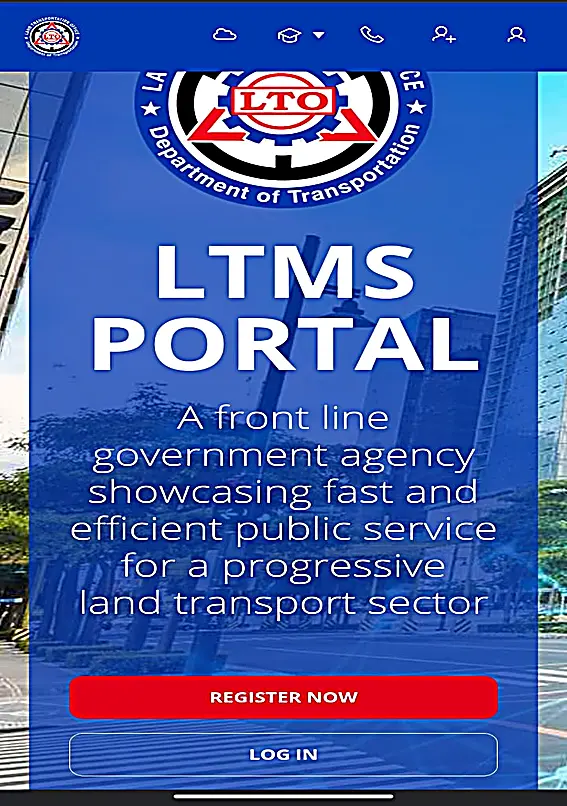
1- Visit the Portal
First, you can open a trusted browser and type portal.lto.gov.ph in the address bar. You can check the government domain before entering personal details. Then choose the registration option on the official homepage.
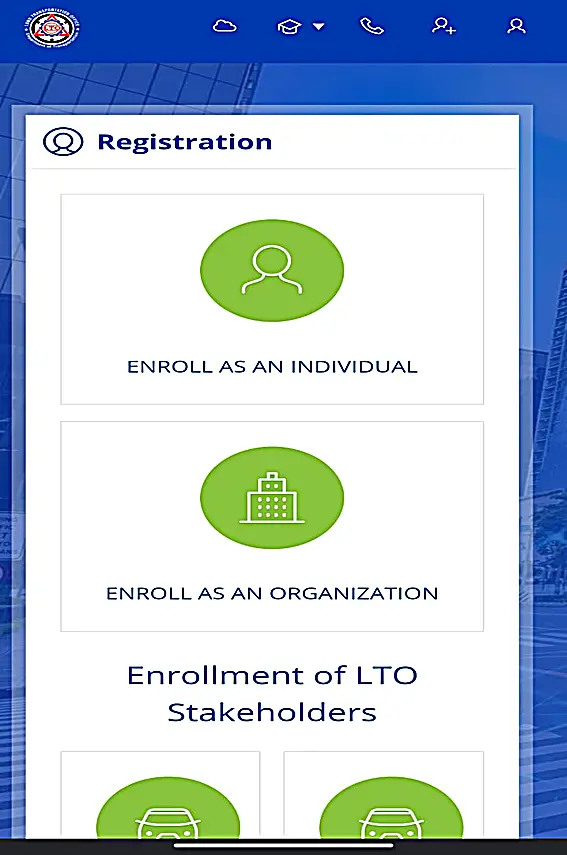
2- Select Individual Account
Choose the individual option when the account is for your own records. Read the terms and privacy notice before continuing. The LTO Portal account should not be created in another person’s name without proper authority.
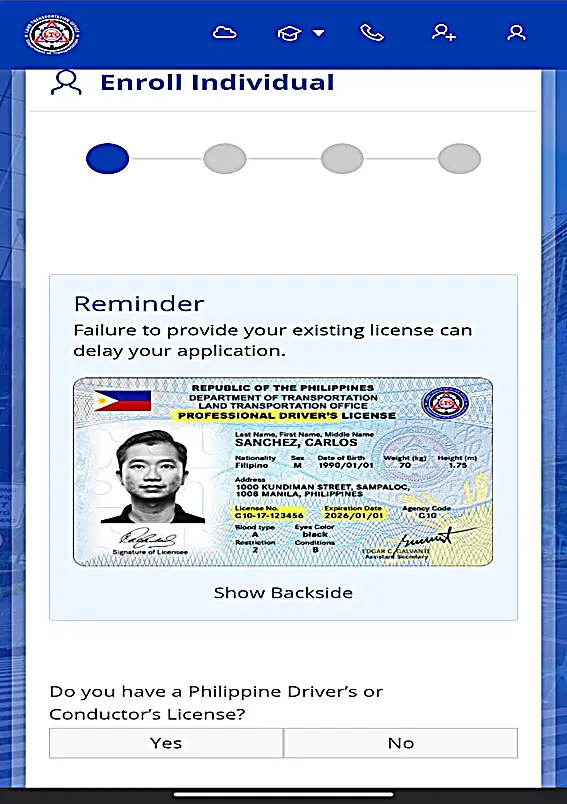
3- Enter Personal Info
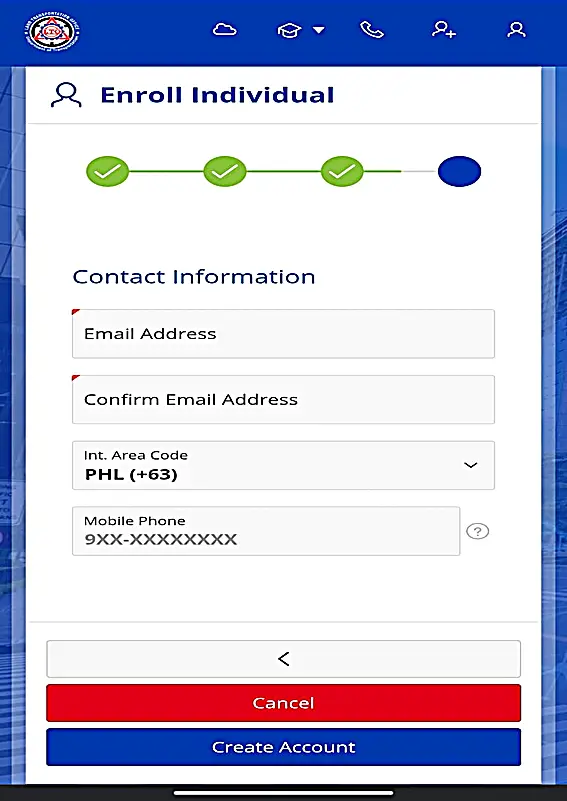
You should provide your name, nationality, birth details, address, email, and mobile number. Follow the spelling and order shown on your identification. You must review every field before submitting the form.
4- Verify Your Email
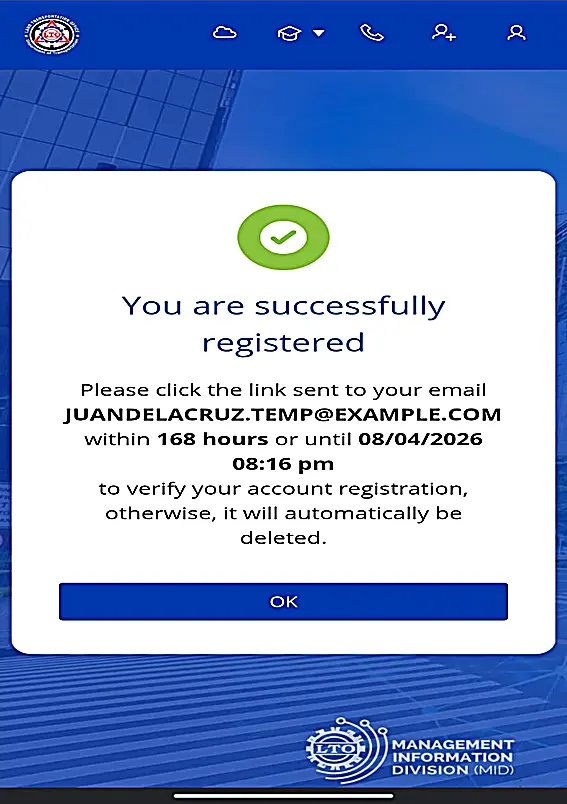
Now, you can open the inbox of the email address you entered. Look for the activation message and check the spam folder when it does not appear. You can avoid creating another profile while the first activation is still pending.
5- Verify Email & Set Password
Finally, you can open the newest activation link and create a secure password. Your LTO Portal login password should not be easy for another person to guess. Save it safely, then return to the official login screen.
Take Note of Your Client ID: The system may issue or display an LTO client ID after your registration or record match. You must save it because you can use it to sign in or request support. I recommend keeping it in a secure password manager instead of a public screenshot.
Official Video Guide: How to Register an LTMS Portal Account
If you prefer watching the process instead of reading step-by-step instructions, this official LTO video walks you through creating an LTMS Portal account. It demonstrates the registration process and can help you follow the required steps more confidently. After watching, you can continue with the written guide below for additional tips and explanations.
LTO Portal Login: Easy Steps to Sign In
After registration, you can use your email or client number, password, and the shown security code to enter the account. The official LTO Portal login screen also provides a “Forgot Password” option. Follow each step carefully to avoid login errors or temporary account issues.
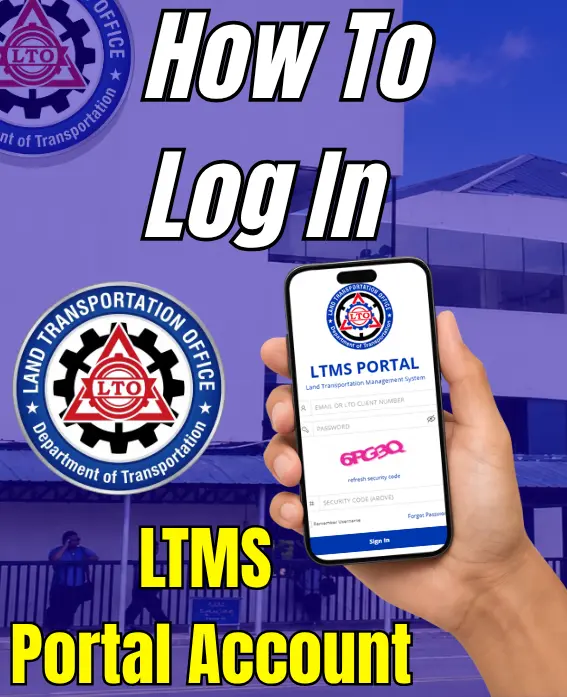
Open the Login Page:
Visit the official website and select “Log In.” Avoid any LTO Portal sign-in screen opened from an unexpected text message.
Provide Your ID or Email:
You can enter the email or client number linked to your profile. Check for typing mistakes and extra spaces.
Enter Your Password:
Now, you can type the correct password with the right capital and small letters. Use recovery rather than making many random guesses.
Solve the Security Captcha:
You must solve the security captcha shown on the page. You should refresh the image when the characters are difficult to read.
Click Sign In:
Select the sign-in button and allow the dashboard to load. Once the LTO Portal opens, you can check that the displayed profile belongs to you
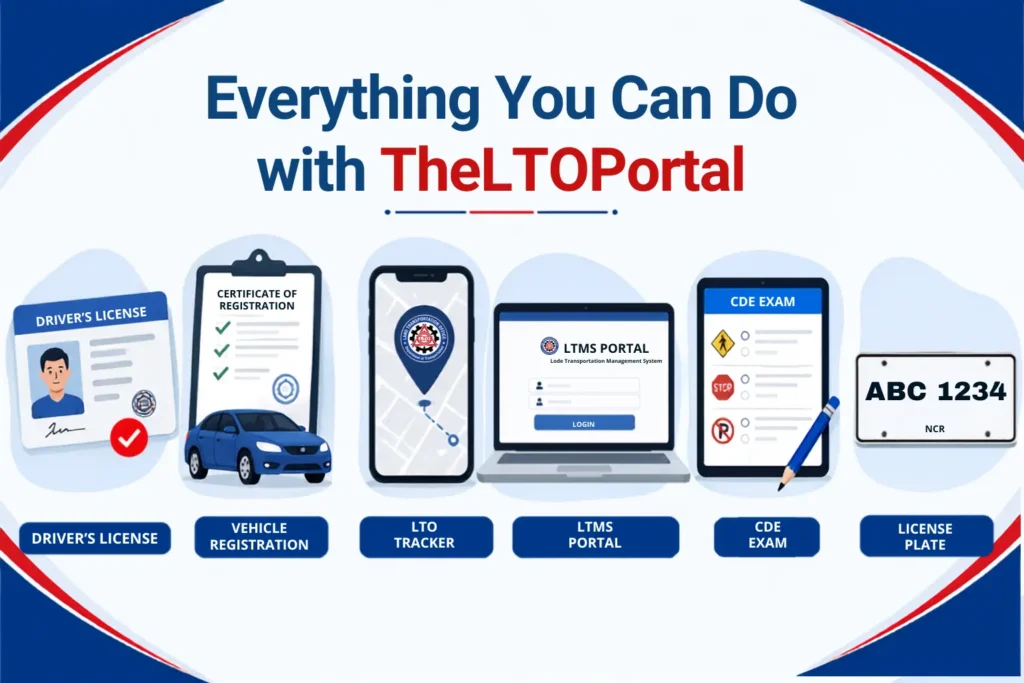
Services Offered: Everything You Can Do on the LTMS Portal
Once you have signed in successfully, the dashboard opens access to several useful driver and vehicle services. From checking records to starting selected online transactions, the options below show what you can manage through the LTMS Portal.
LTO Portal Renewal Exam: Free Reviewer & Passing the CDE Test
Renewing your driver’s license or motor vehicle registration is now completely online through the LTMS official portal. You can easily complete the mandatory CDE online validation exam, upload your medical or PMVIC inspection records, and pay official fees directly from home. Access our complete step-by-step LTO Portal Renewal guide to get your license and registration renewed without any delays.
Skip the Lines: Managing Vehicles & LTO Registrations Online
After completing the renewal exam, you can turn your attention to the vehicle services available in your portal. It helps you to review registration records, add vehicle details, and handle selected tasks online before visiting an LTO branch.
How to Add a Vehicle to Your LTMS Profile
Before you can manage LTO Portal registration details online, the vehicle must be properly linked to your LTMS profile. The steps below show how to add the record and what to do when the system cannot find it.
Tracking Documents via the LTO OR/CR Portal
The online record may show whether a payment, renewal, or document step is complete. However, what you see depends on the transaction and whether the office has already encoded its update.
Clear Your Record: How to Check & Settle Violations via the LTO Portal Online
An unresolved violation may affect a later driver or vehicle transaction, so checking early can save time. The LTO Portal may show cases entered in its system, while a local citation may remain separate until it is encoded.
Access Violations Dashboard
Sign in and open the violations, adjudication, or related transaction section. You should select the record connected with your licence or vehicle. Read its date, location, issuing unit, and status.
Review Your Fines and Demerit Points
Compare the online offence, fine, and demerit details with the ticket you received. You must gather proof and contact the issuing office when something appears incorrect. You should not pay for a record that may not belong to you.
Settle the Fines Electronically
You should use only a payment method displayed in the official system or named by the issuing agency. Save your reference number and receipt. You do not use a payment link from an unexpected violation text.
What to Do If an LGU Citation Does Not Show Up Online
Even after checking your violation record online, an LGU-issued citation may not appear in the system right away. This does not always mean the citation is cleared, so the steps below explain how you can verify and settle it correctly.
Find a Branch: LTO Regional Offices & Branch Locations
While LTMS started in select pilot locations, it is now active across all 600+ LTO offices nationwide. You can visit any authorized branch across Luzon, Visayas, or Mindanao, though physical steps like biometrics, medical checks, and vehicle inspections still require an in-person visit. Below, we break down key regional locations, processing times, and an online vs. in-branch service checklist.
National Capital Region Offices
The directory lists the NCR regional office on G. Araneta Avenue in Quezon City, along with divisions and field offices. You should choose a branch that handles your transaction, not only the nearest location. Calling first may save you a wasted trip.
Regional Offices: Luzon, Visayas, and Mindanao
LTO has regional and field offices across Luzon, the Visayas, Mindanao, NCR, CAR, and CARAGA. The directory provides addresses, phone numbers, and emails where available. Check it again before travelling because details may change.
Processing Times by Region
Processing time depends on the transaction, queue, record condition, inspection, connection, and office workload. A clean renewal may move faster than a transfer or record correction. Complete documents can help you to avoid extra visits.
Key Services Handled In-Branch vs. Online
Before traveling to any of the regional offices or branch locations listed above, check your task first. This checklist helps you to confirm whether you can finish it on your dashboard or if you actually need an in-person visit.
Transaction Category | Handled on the LTMS Portal | Requires Physical Branch Visit |
|---|---|---|
Driver’s Licensing | Take CDE exam online | Capture biometrics and a photo |
Apply for license renewal | Take a medical physical exam | |
View digital e-License | Print physical license card | |
Vehicle Registration | Submit registration renewal | Conduct a vehicle inspection |
Pay annual renewal fees | Complete emission test | |
View active OR/CR details | Pick up license plates | |
Traffic Violations | Check demerit points | Attend adjudication hearings |
Pay LTO fines online | Clear un-encoded LGU tickets |
LTO Online Portal Troubleshooting: Recover & Retrieve Your LTO Portal Account
If you cannot LTO Portal sign in, the recovery methods below can help you to reset your password and regain access to your registered profile.
Resetting a Forgotten LTO Portal Login Password
The login page provides a “Forgot Password” option below the sign-in fields. You can use it when you know the registered email or client number and still control the linked inbox.
Open Recovery Window:
Open the official login page and choose “Forgot Password.” You should check the domain before entering account information. A fake recovery page may steal your details.
Submit Email or Client ID:
Enter the email or client number linked to your profile. You can complete the security code and submit one request. Several requests may cause confusion between old and new links.
Open Reset Link:
Check your inbox and spam folder for the newest recovery email. You can open the latest link before it expires. Never forward the message to another person.
Set a New Password:
Create a password that is not used for email, banking, or social media. Save it privately and return to the official sign-in page. Your new LTO Portal login password should never be shared.
How to Retrieve LTO Portal Account Without Email
When you no longer control the registered email, normal password recovery may not work. Official support or a branch visit may be needed to verify your identity.
Step No 1:
Prepare your valid ID, licence or permit, client number, and any records connected with the old account. You can write down the old email and the exact issue. This will make the request clearer.
Step No 2:
Contact official support or the office that processed your recent transaction. Explain that you cannot access the registered email. Avoid sending documents to an unverified page.
Step No 3:
You should follow the identity-check instructions given by the support team. You may need to show original documents at a branch. This protects your driver and vehicle information.
Step No 4:
After access is restored, you can reset the password and review your profile. Check your name, phone number, address, licence, and vehicles. Report any change you did not make.
In a Hurry? Do not create several new profiles because duplicate records may make recovery harder. When the issue is urgent, you should take your documents to an authorised branch and explain that an existing LTO Portal profile needs recovery.
Need Help? Official LTO Contact Information & Support Desk
Use the official contact section or directory when an error continues. You can share the error message, date, client number, and basic transaction details, but never provide your password or banking code. The directory lists the Central Public Assistance Office mobile number as +63 929 292 0865, which LTO also gives for reporting suspicious violation messages. Contact the local issuing unit first when your problem concerns an LGU ticket.
Frequently Asked Questions
Official LTO websites:
https://lto.gov.ph/
https://portal.lto.gov.ph/
Disclaimer
TheLTOPortal is an independent informational website and is not affiliated with or endorsed by the Land Transportation Office (LTO), the LTMS Portal, or any Philippine government agency. All content is provided for general informational purposes only and should not be considered official government advice.